
Hi vAdmins,
With the introduction of VCF 9 and VCF Operations, we’ve seen a growing need for deeper insight into these useful new capabilities To address this, we’re launching a new series of updates focused on VCF Infrastructure Operations.
In this blog post we will take a closer look at Troubleshooting Workbench.
Intro
The Troubleshooting Workbench home page is where you’ll find your active troubleshooting sessions and recent searches. You can kick off a troubleshooting session by simply searching for an object’s name. In this example, we are looking for a Virtual Machine.

As you can see in the screenshot, there are also “Recent Searches” available.

Diagnosing the Problem: A Guide to Reviewing Potential Evidence
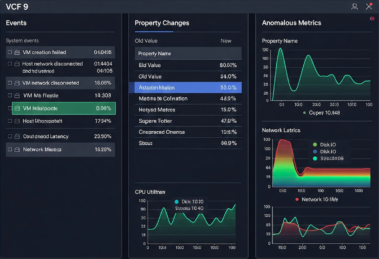
When you’re deep in the trenches of troubleshooting, the quality of your evidence is everything. To effectively pinpoint the root cause of an issue, you must gather all potential evidence within a specific scope and time frame, and—most importantly—understand how to categorize it.We break down this critical evidence into three powerful categories:
- Events: These are the key occurrences—the moments when your metrics diverged sharply from what was expected. Think of them as the incident markers on your timeline.
- Property Changes: Configuration changes are a frequent culprit. This category includes all recent, significant changes to your system’s configuration that may have inadvertently caused the problem.
- Anomalous Metrics: Not all metric changes are equal. This group highlights metrics that exhibit drastic, unusual behavior, and they are ranked so you can immediately focus on the deviations with the highest severity.

By adjusting the time range, you can often uncover additional, critical evidence to significantly enhance your troubleshooting.

In the demo above we see a clear trend emerge as we adjust the time range
Unleash the Power of Scoping in the Troubleshooting Workbench
You can choose to focus only on the object you’re investigating, or you can widen your perspective to include several upstream and downstream relationships by simply expanding the scope. As the scope increases, more related objects will appear in the inventory tree.
In the demo above, you already have a glimpse into the magic of adjusting your scope. It’s not just a small tweak—it completely transforms how you view every metric, alert, and piece of data!
Summary
The Troubleshooting Workbench is your most powerful diagnostic tool. Remember, effective troubleshooting always begins with ‘Scoping!
End of this post.
Disclaimer: Please note that the views expressed in this blog are solely my own and should be treated as personal opinions. This content does not hold any legal or authoritative standing.